Launch countdown page with built-in waitlist
Pick a launch date and Qubed puts a live days, hours, minutes and seconds countdown directly above your waitlist signup form. Each visitor sees it in their own time zone, and at zero it flips to “Live now”. It works with all 1,000 templates and is free on every plan.
Free plan · no card · countdown on every template
How it works
A countdown that does the selling
Set one date in the editor's Launch countdown section. Everything below happens on its own.
Days, hours, minutes, seconds
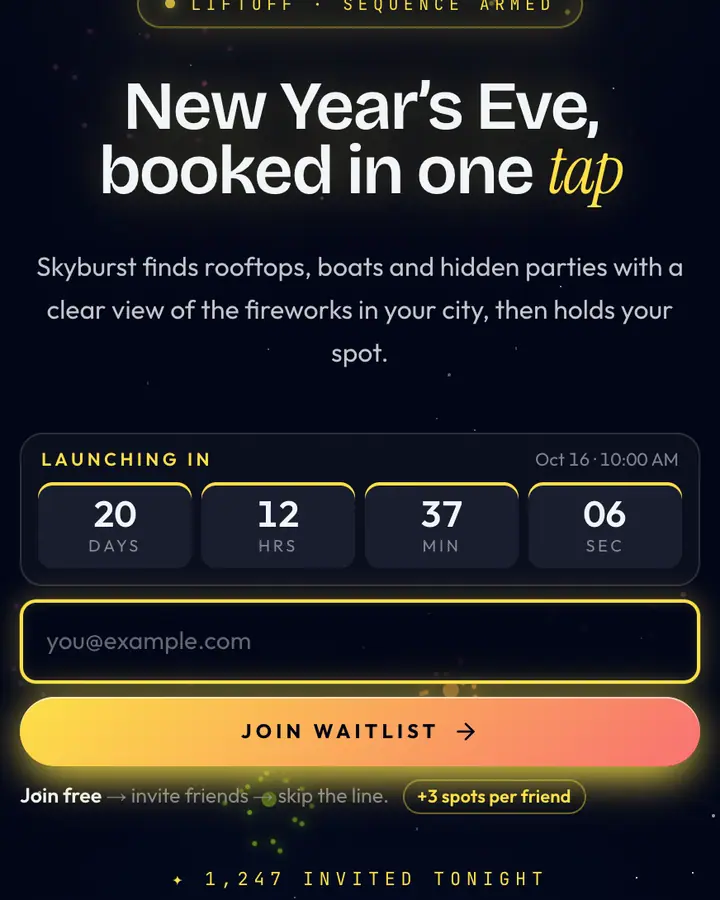
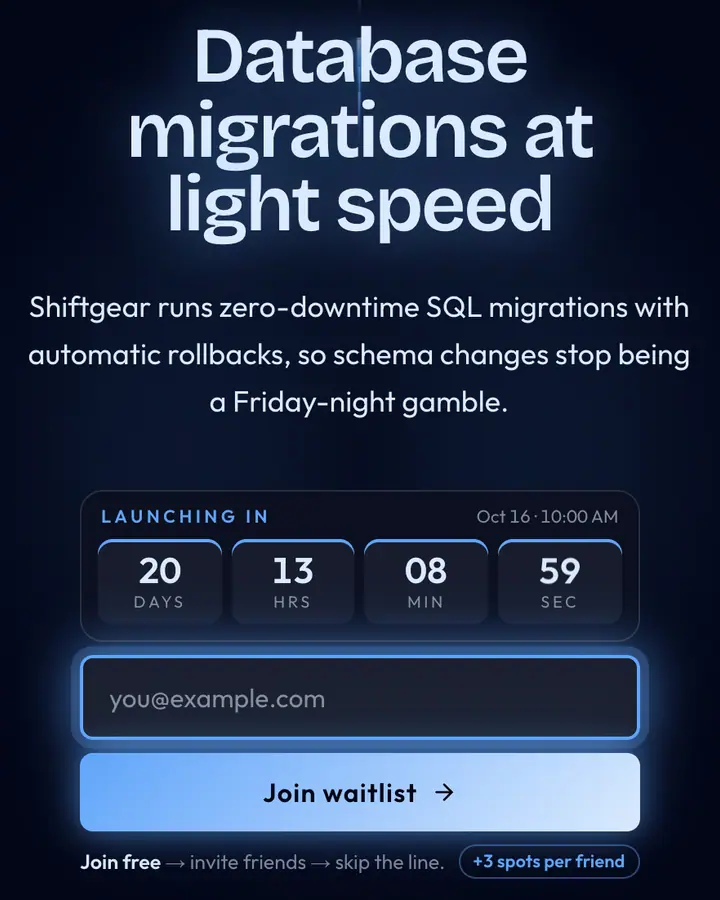
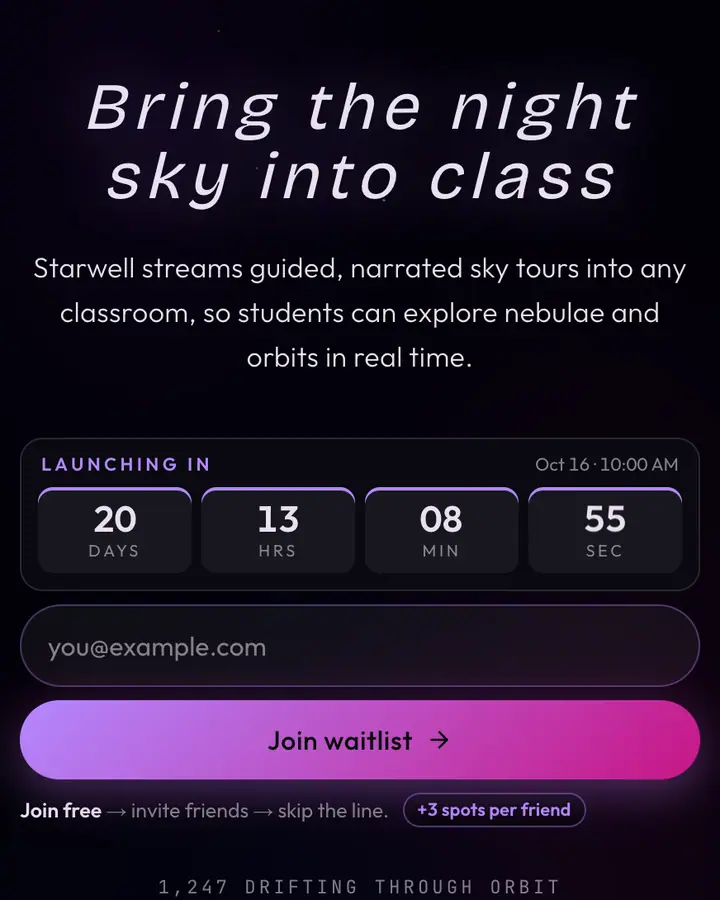
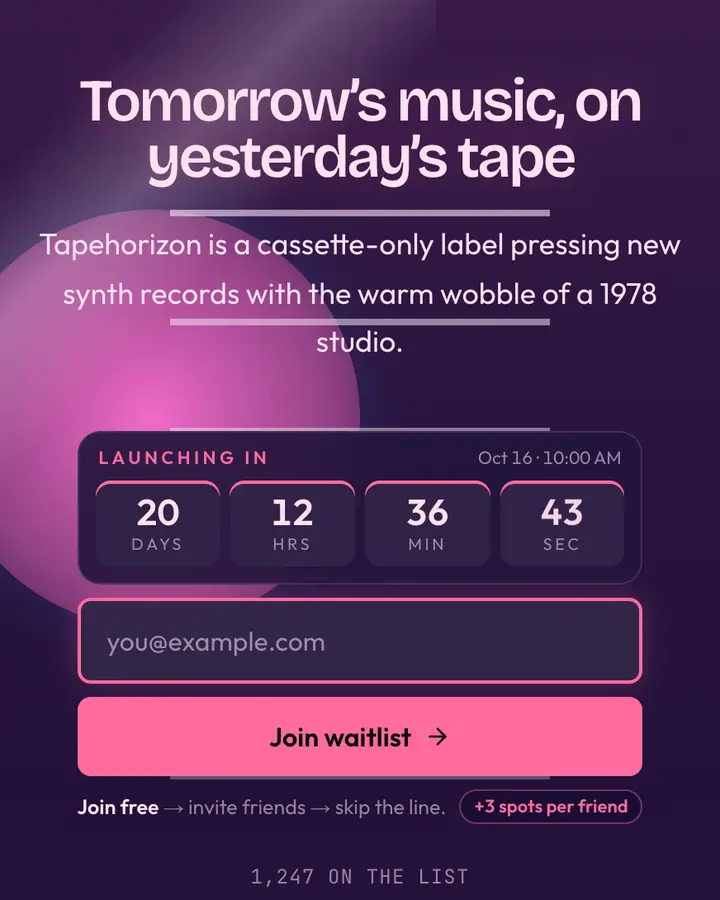
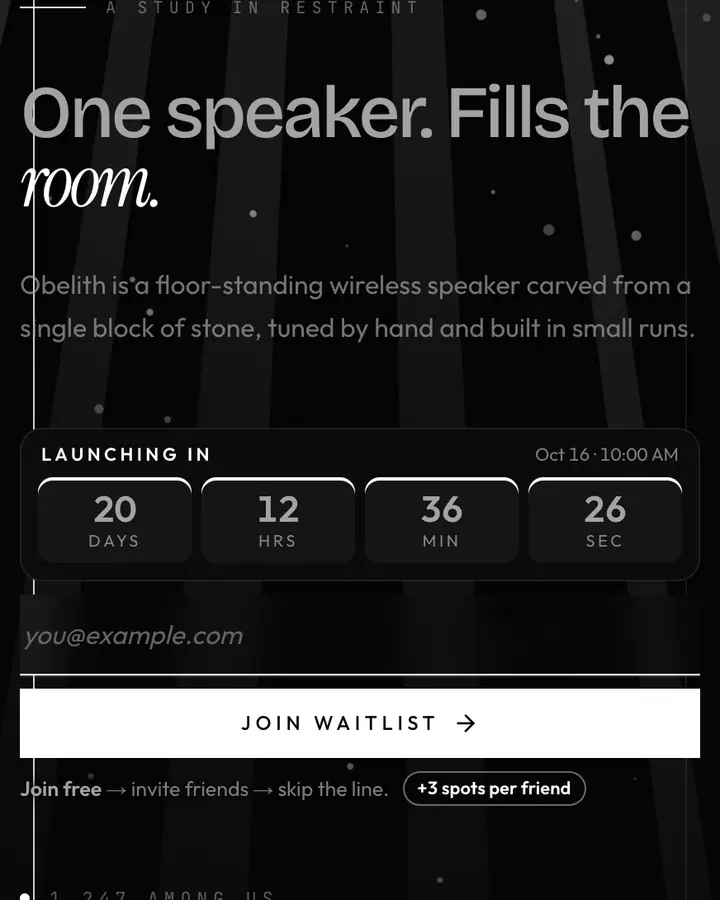
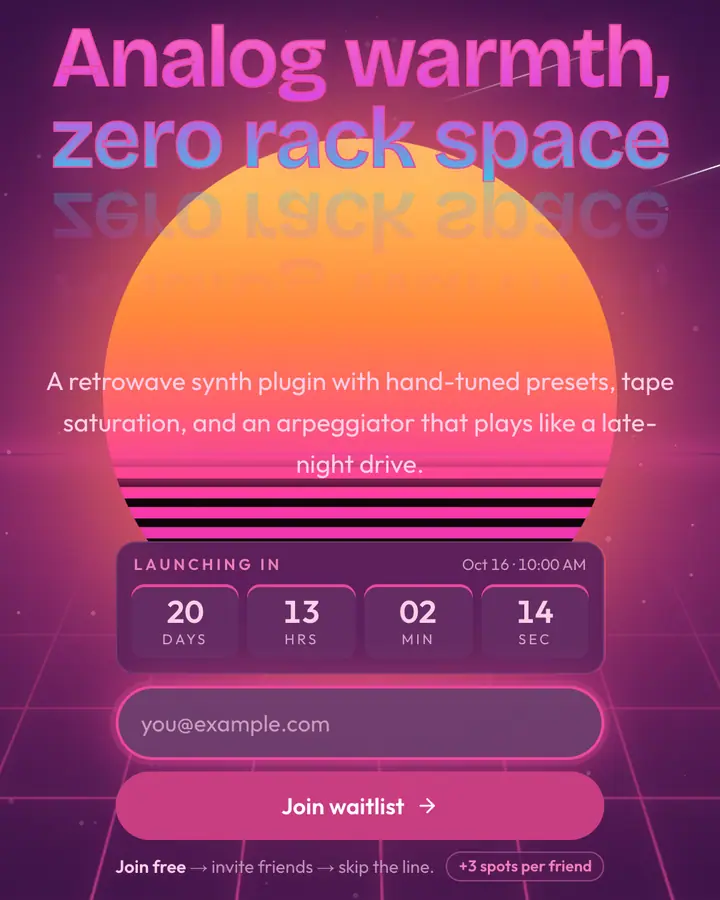
A four-cell clock labelled "Launching in", with the launch date and time next to it. It ticks every second.
Shown in each visitor's own time zone
You pick one moment in the editor. Every visitor sees the date and time converted to their own clock, so nobody has to do time-zone math.
Flips to "Live now" at launch
When the clock reaches zero it turns into a "Live now · Launched <date>" bar, so the page never shows a countdown stuck at 00:00.
Matches every template
The clock inherits the template's font and palette, and its colors are adjusted automatically to stay readable (WCAG AA contrast) on light and dark designs.
Adds urgency after signup too
Once someone joins, the share panel reminds them how long is left ("Launch in 12 days — climb before the doors open").
Optional, and easy to change
Leave the date empty and no countdown shows. Set one, start a 30-day countdown with one click, move it, or clear it whenever plans change.
Illustration · example date
When to use it
When a countdown helps, and when to skip it
A clock is a promise. Use it when you can keep it.
Use a countdown for
- A fixed launch day, beta opening or Product Hunt date
- Limited product drops and pre-orders
- Game pre-registration before a release or playtest
- Crowdfunding campaigns with a start date
- Events, cohorts and course enrollment windows
Skip it when
- You don't have a date yet: say "early access this spring" instead
- The date is likely to slip more than once
- You're validating an idea and launch depends on the response
Pairing a date with share-to-climb referrals gives subscribers a deadline to move up the line.
FAQ
Launch countdown FAQ
How do I add a countdown to my waitlist page?
Open your page in the editor, go to the Launch countdown section and pick a launch date and time, or click "Start a 30-day countdown". Save, and the clock appears above your signup form.
What happens when the countdown ends?
The clock turns into a "Live now" bar that shows the launch date. The signup form keeps working, so late visitors can still join the list.
Which time zone does the countdown use?
You choose the launch moment in your own time zone. Each visitor's browser shows that same moment converted to their local time.
Is the countdown free?
Yes. The launch countdown is included on every plan and works with every template.
Can I hide the countdown?
Yes. Clear the launch date and the countdown disappears. Pages without a date simply show the signup form.
Put a date on it. Start collecting.
Publish a countdown waitlist page in minutes. Free for your first 100 subscribers, no card needed.
Free forever plan · no card needed
Related
Features
- Referral waitlistEvery friend moves them up 3 spots
- Coming soon page builder
- Pricing